




Sharp Noise
Every photographer as well as artisans of all sorts know how important it is to have an extra specialty tool available for when things don’t quite work out the way you expect them to. Photoshop’sHigh Pass Filteris one of those tools. Let’s see how to use it.
Unsharp Maskingis the way that everyone who works with digital image processing knows to sharpen their files. Of course the use of this ill-named tool has nothing to do either with masking, or unsharpness. It’s just a carryover from the days when an unsharp negative was sandwiched with a sharp one to enhance edge contrast. And that is in fact what the Unsharp Mask tool in Photoshop does, it increases edge contrast. (For a look at the best methods for doing Unsharp Masking have a look at my tutorialInstant Photoshop.)
But, as useful as it is, the USM tool has problems, and one of these is that it also increases any noise present in the file. Particularly noisy photographs therefore can suffer when USM is applied.
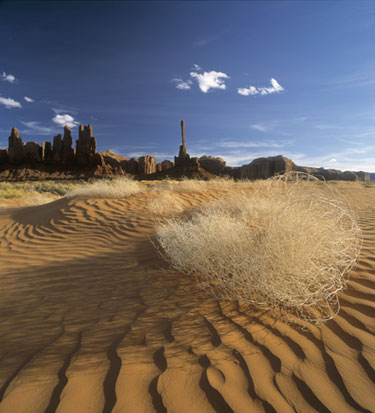 Tumbleweed Dunes, 2000
Take a (High) Pass
On theLayerpalette select yourBackground Layerandright click. SelectDuplicate Layer.
- With this new layer highlighted selectFilter/Other/High Pass. Set theRadiusto10and clickOK.
- Zoom into your image toActual Pixelslevel so you can better see what you’re going to do next.
- Go back to theLayer Palette andselectHard Lightfrom the left drop down.
- Now go to theOpacity Sliderand select a level of sharpening that seems best to you. Usually something between 20% and 70% will be best.
That’s all there is to it.
What I particularly like about this method of sharpening is thatit can be undoneeven after the file has been saved. This is because the sharpening is done on a separate layer not on the original background layer. You can also click theeyebeside this layer on and off to see the effect at any time.
Thanks to the Australian magazineDesign Graphicsfor drawing this technique to my attention.


Elevate Your Vision


Read this story and all the best stories on The Luminous Landscape
The author has made this story available to Luminous Landscape members only. Upgrade to get instant access to this story and other benefits available only to members.
Why choose us?
Luminous-Landscape is a membership site. Our website contains over 5300 articles on almost every topic, camera, lens and printer you can imagine. Our membership model is simple, just $2 a month ($24.00 USD a year). This $24 gains you access to a wealth of information including all our past and future video tutorials on such topics as Lightroom, Capture One, Printing, file management and dozens of interviews and travel videos.
- New Articles every few days
- All original content found nowhere else on the web
- No Pop Up Google Sense ads – Our advertisers are photo related
- Download/stream video to any device
- NEW videos monthly
- Top well-known photographer contributors
- Posts from industry leaders
- Speciality Photography Workshops
- Mobile device scalable
- Exclusive video interviews
- Special vendor offers for members
- Hands On Product reviews
- FREE – User Forum. One of the most read user forums on the internet
- Access to our community Buy and Sell pages; for members only.
You may also like