




One of our favorite RAW processors now understands film negatives.
Capture One just dropped version 16.7.4, and it includes the usual round of bug fixes and lens profiles, but the real deal here is something photographers who shoot or scan film have been wanting – a dedicated negative-to-positive conversion pipeline built right into the application.
Let’s break it down.
The Headline: Negative Film Conversion
This is the feature that calls our attention. Capture One has introduced a new processing mode designed for converting film negatives into positive images.
Here’s how it works. A new Mode option has been added to the Base Characteristics Tool, letting you switch between Photography (your standard digital workflow) and Film Negative processing.
When you flip to Film Negative mode, Capture One restructures its entire processing pipeline for negative scans. The curve locks to a new Auto setting designed to pull maximum tonal detail from negatives, and the processing order adjusts to handle inversion and tonal correction properly.
This means that whether you’re tethering a camera for scanning or importing files from a flatbed, Capture One now treats your negatives as negatives from the beginning – not as weird digital files it’s trying to make sense of.
A few practical details worth noting:
- Film Negative mode is applied per image, so you can mix digital and film scans in the same catalog or session without any conflict
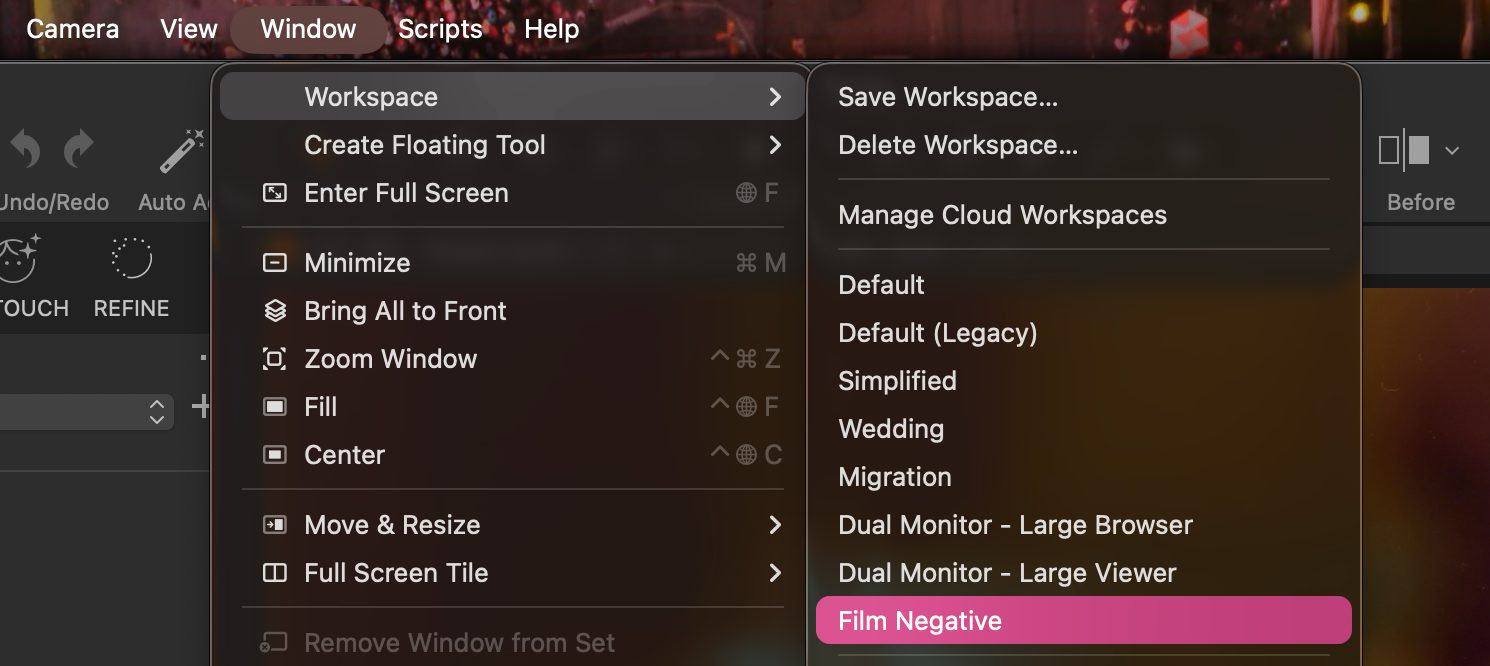
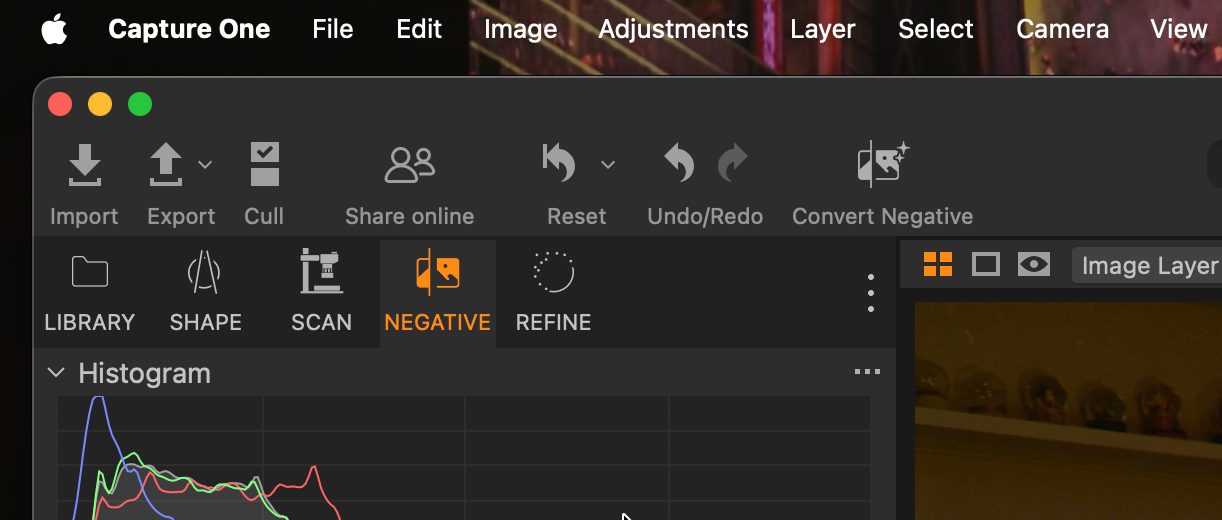
- A new Film Negative workspace groups your scanning and conversion tools into dedicated tabs called Scan and Negative
- A single “Convert Negative” button switches the image to Film Negative mode and applies Auto Levels in one click – setting black and white points and stretching the tonal range instantly
- Inverted negatives display a small indicator in the Viewer and Browser, so you always know which pipeline an image is using
The Workflow: From Scan to Positive
Capture One has really thought out how photographers work with negatives, and they recommend a workflow.
For scanning, the guidance is: use Live View to align your film, sample the film base (the unexposed area) with the White Balance picker, set the curve to Linear Response, and expose as far right as possible without clipping.
If you’re tethering, you can apply Convert Negative to the first frame and use Next Capture Adjustments to carry those settings through the entire roll. A very useful batch workflow.
For conversion itself, the key steps are pretty straightforward:
- Sample the film base with the White Balance picker to neutralize the orange mask
- Crop out your film borders (this is critical – Auto Levels reads the cropped area, and leftover borders will throw off your conversion)
- Click Convert Negative
- Fine tune with Levels, which now adjusts Red, Green, and Blue channels independently in Film Negative mode
One important note: Exposure adjustments happen before Levels in this pipeline.
So if your scan is well-exposed, leave Exposure alone after conversion and use Brightness for overall lightness adjustments instead. Small detail, but it matters for getting clean results.
What Doesn’t Work (Yet)
Capture One is upfront about limitations, which we appreciate.
In Film Negative mode, several tools behave differently or are disabled entirely:
- Subject, Background, and People masks may produce incorrect results – the AI tends to identify the entire film frame as the “subject” rather than what’s on it
- High Dynamic Range, Retouching, and Dehaze tools are disabled
- The workaround for masking and retouching is to export your converted positive as a TIFF, re-import it, and work on it in the standard Photography pipeline
These are reasonable trade-offs for a first implementation, and we expect Capture One will refine this over time. For now, the core conversion workflow looks well-designed for the task.
Pick Neutralize Point?
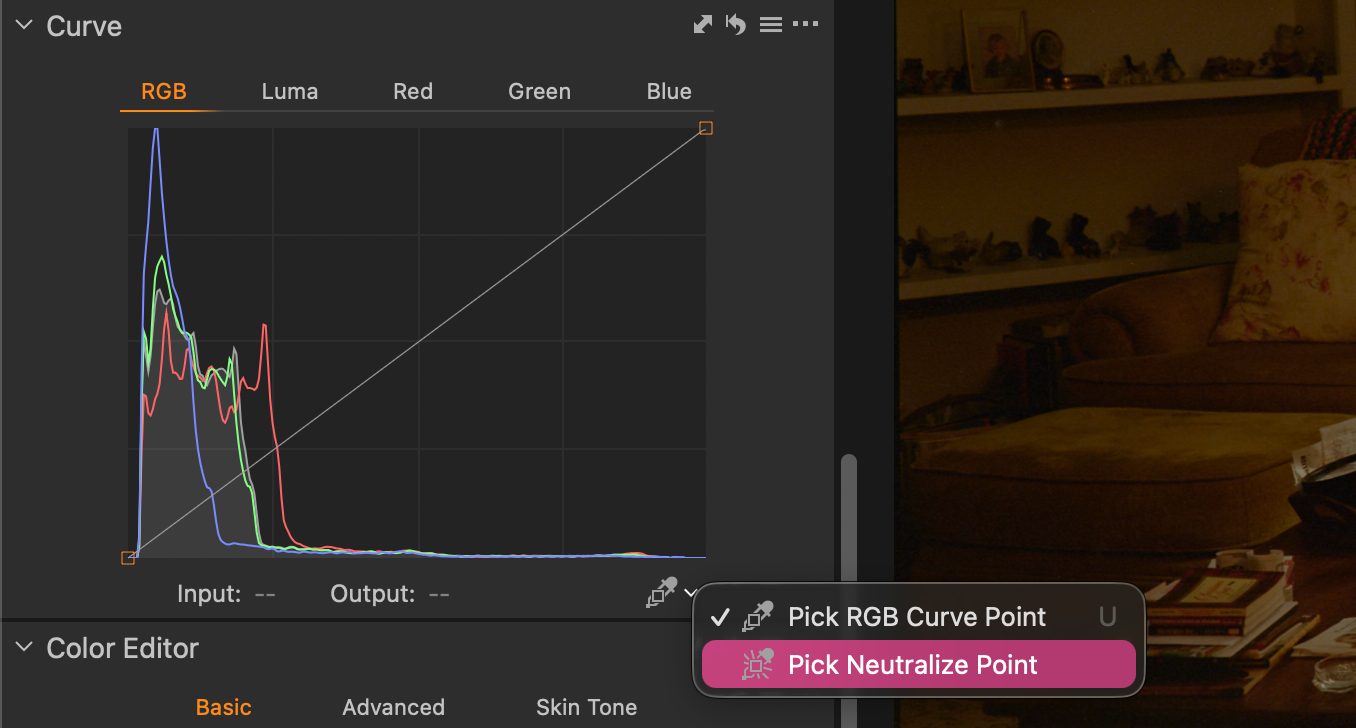
Buried a bit in the release notes looks like something useful – a new Pick Neutralize Point Cursor Tool has been added to the Curves Tool (available when the RGB tab is selected).
Click on any point in your image that should be neutral, and the tool automatically adjusts the Red, Green, and Blue curves so those values match the luminance value at that point.
The result is supposed to be a precise, targeted color cast removal.
One way we could use this is instead of eyeballing our curves or relying on global white balance shifts, we can point at a concrete wall, or a gray card, or any surface we know should be neutral, and let Capture One do the math.
It creates corresponding control points on each individual channel curve automatically.
A couple of things: the tool works best on midtone areas. Avoid clicking on extreme highlights or deep shadows, as the accuracy drops around the edges of the histogram.
And any existing edits to individual channel curves will need to be reset before using it. The tool is to warn you if there’s a conflict.
For film negative work especially, this could be of handy use to go along with the White Balance picker for dialing in accurate color.
Contact Sheets: Smaller Files, Better Quality
Contact sheet PDF exports now produce significantly smaller file sizes, making sharing and archiving more practical.
Cover, header, and footer images are now persistent – meaning you set them once and they stick, no more reinserting every time.
And export image quality has been improved across the board.
If you use contact sheets for client proofing or personal archiving, this will be a welcome improvement.
Camera and Lens Support
Two additions on the camera side:
- Sigma BF file support
- OM System (all supported models) now gets 14-bit RAW support
The OM System update is worth noting.
14-bit RAWs carry more tonal information than 12-bit files, which means better shadow recovery, smoother gradients, and more editing headroom.
If you’re shooting OM System bodies, this is a wonderful upgrade to what Capture One can extract from your files.
On the lens side, the Canon RF 14mm F1.4L VCM now has a dedicated lens profile for automatic corrections.
Bug Fixes
A few housekeeping items rounded out this release:
- On macOS, a bug that kept the recent document window pinned on top of other windows has been fixed
- A FUJIFILM GFX 100 II tethering issue – where pressing the auto-focus button accidentally triggered capture – has been resolved
- On Windows, a bug that unnecessarily prompted about layer copying behavior has been squashed
Good Stuff
Capture One 16.7.4 is a fun update. The negative film conversion pipeline is a good feature for hybrid shooters – people working with both digital and film – organize their post-processing in one program. If you’ve been waiting for a simpler way to convert your film scans – this seems like the program to do it.
OM users should definitely update or try out Capture One to get that 14-bit depth.


Elevate Your Vision


Read this story and all the best stories on The Luminous Landscape
The author has made this story available to Luminous Landscape members only. Upgrade to get instant access to this story and other benefits available only to members.
Why choose us?
Luminous-Landscape is a membership site. Our website contains over 5300 articles on almost every topic, camera, lens and printer you can imagine. Our membership model is simple, just $2 a month ($24.00 USD a year). This $24 gains you access to a wealth of information including all our past and future video tutorials on such topics as Lightroom, Capture One, Printing, file management and dozens of interviews and travel videos.
- New Articles every few days
- All original content found nowhere else on the web
- No Pop Up Google Sense ads – Our advertisers are photo related
- Download/stream video to any device
- NEW videos monthly
- Top well-known photographer contributors
- Posts from industry leaders
- Speciality Photography Workshops
- Mobile device scalable
- Exclusive video interviews
- Special vendor offers for members
- Hands On Product reviews
- FREE – User Forum. One of the most read user forums on the internet
- Access to our community Buy and Sell pages; for members only.
You may also like